This information applies to presenters who will be presenting at events with full AV coverage, including support for streaming, recording, and remote presentations. This will be provided for PLDI, ARRAY, CP, EGRAPHS, ISMM, LCTES, PAgE, PROPL, and SOAP. Presenters at other events may still find the information here useful and are encouraged to review it.
We assume most presenters will be in-person. If you need to present remotely, see the relevant instructions below.
Information for All Presenters
-
We strongly recommend the use of a 16:9 or 4:3 aspect ratio for your slides.
-
You should pace your talk carefully; time is of the essence and the program schedule will be strictly enforced. You can find the length of your talk in the program. Please aim to keep your talk at least 3 minutes under the slot length to account for setup and questions.
-
If you are presenting at an event with full AV coverage, you will be receiving a presenter questionnaire, created by the AV Committee, from your event organizers. It is imperative to complete this form as early as possible to help the AV Committee plan for your talk. You will be able to indicate if you are giving an in-person or remote talk, whether you wish to record or stream your talk, and other important logistics via this form. At this time, the questionnaire has been distributed to main track presenters and to the workshop chairs of all covered workshops.
-
Please submit this questionnaire once for each talk you will give at PLDI 2026 or one of the co-located events with full AV coverage. Only submit if you are the main presenter; if someone else is the main presenter, they should submit instead.
-
You will receive a copy of your response. Please edit the response after submission if anything changes; do not submit a new response.
Information for In-Person Presenters
-
You should bring your own device to present your slides. Please ensure your slides are available offline/accessible from a different device in case of any technical issues.
-
Your presentation device should support HDMI output. If it does not, you are responsible for bringing the appropriate adapter.
-
During the breaks throughout the conference, take time to familiarize yourself with the room, and ask the Student Volunteer present to test out your laptop/slides. Clarify any questions you might have with the Student Volunteer or a Video Chair in the room.
-
Arrive at your session at least 15 minutes before it begins. Make your presence known to the session chair and student volunteers. During the break before your session starts, ensure that your presentation device is working, and your slides are accessible in order to avoid last minute difficulties.
Additional Details
-
During the conference, you will wear a badge/lanyard with your name on it. Please take this off before putting on a microphone!
-
If you have a handheld microphone, please speak into it closely.
-
If you use a Mac for presenting, your device has True Tone display technology. While your slides will look fine on the in-room projector or display, they will have a yellow hue on the livestream and in the recording. Please turn off True Tone to prevent this. You can disable this through Control Center, as shown below:
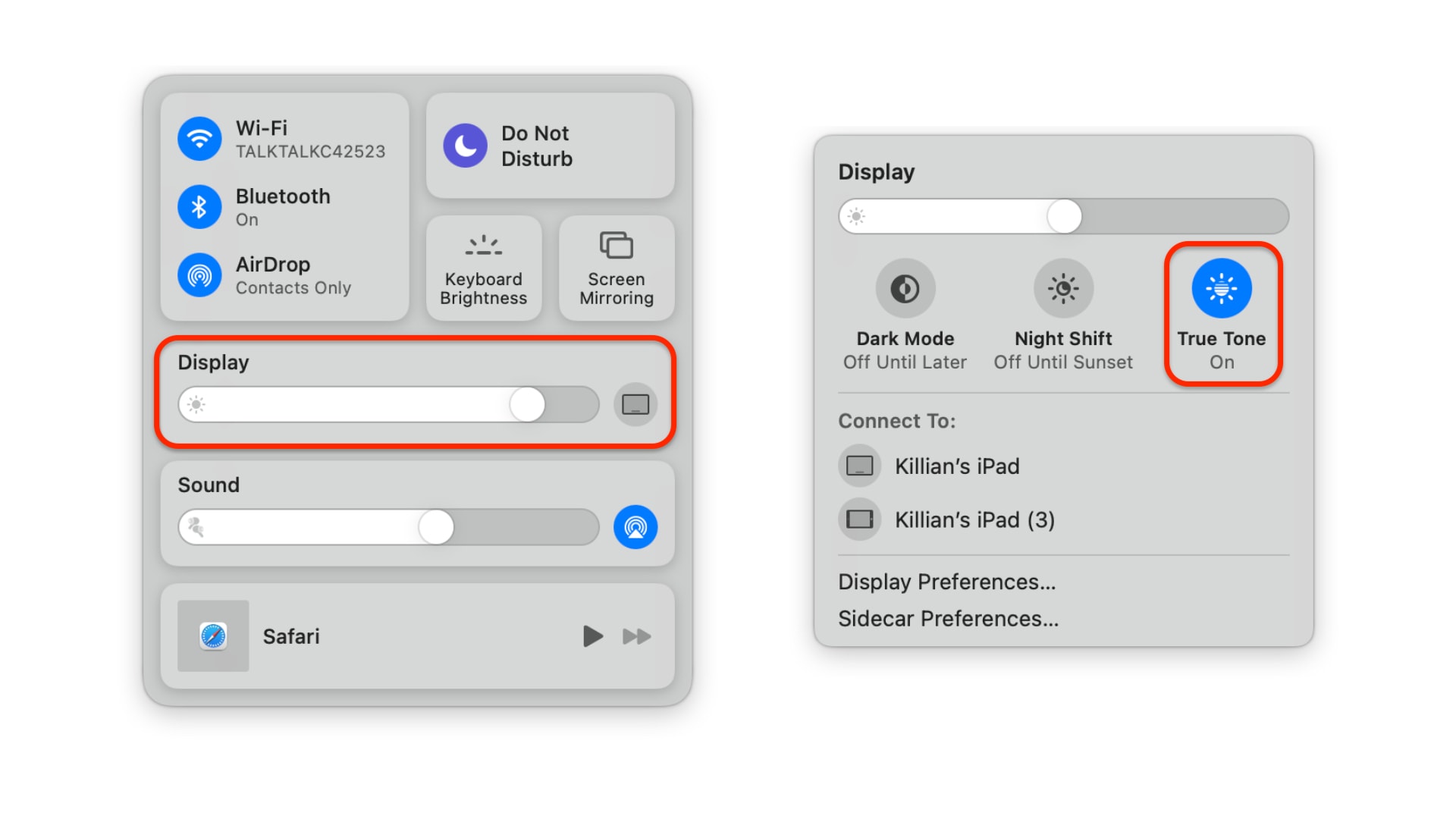
Please make sure True Tone is turned off.
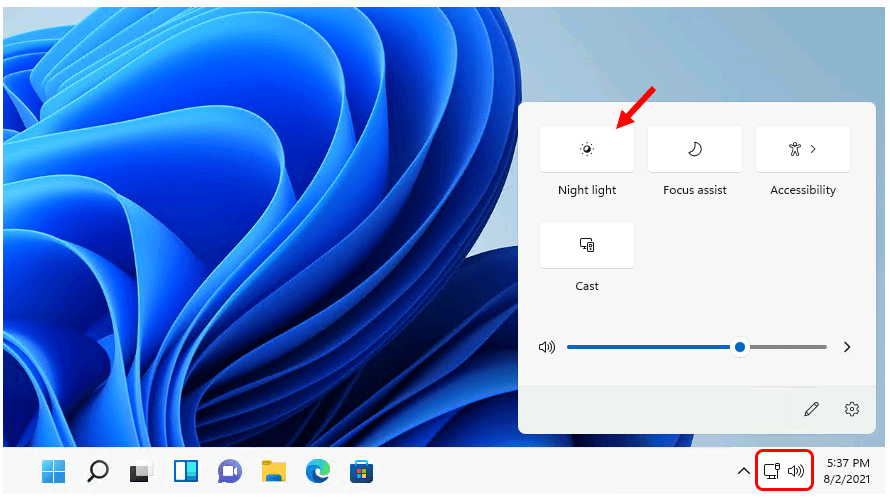
- Similarly, if your device has a night light mode or blue light filter, please disable this during your talk to ensure your slides look correct in-person and on-stream. You can disable this in Control Center on a Mac, or Quick Settings on a Windows device:
Information for Remote Presenters
-
If you plan to present remotely, please obtain approval from your respective program chair as early as possible. Additionally, inform the AV Committee of your plans via the presenter questionnaire mentioned above.
-
Remote presenters will interact with session chairs and in-person participants via a Discord video call. This interaction includes both the talk and the live Q&A.
-
While we also support playing pre-recorded talks, we strongly encourage remote presenters to deliver their talk live over Discord, so that the talk and Q&A take place over the same medium.
-
Presenters who plan to give a live remote talk may also provide a backup pre-recorded talk just in case. In that case, refer to both sets of directions below for pre-recorded and for live remote talks.
-
If your talk is remote, it must have the Remote or Recorded badge in the program. Otherwise, please notify your event’s organizers to add it for you.
Pre-Recorded Remote Talks
Some presenters may opt to submit a pre-recorded talk to avoid technical difficulties (e.g., unreliable internet connection, poor video call quality) or overcome timezone differences. Note that you will still be expected to participate in live Q&A over Discord after we play your pre-recorded talk, unless you have made other arrangements with your event organizers.
Following are instructions for preparing and submitting your pre-recorded talk:
- Prepare your talk as a video recording:
-
There are various tools available to record your talk. One of the easiest ways is to use Zoom: share your screen, unmute your microphone, and record your “meeting”. You can use tools like iMovie or ActivePresenter to edit your recording.
-
Make sure your video does not exceed your time limit. Your time limit is the duration of your time slot (as it appears in the program) shortened by at least 5 minutes, to allow for Q&A and switching to the next speaker.
-
Please submit a mp4 formatted video.
-
Your video file should be named according to the following schema:
<EVENT_ACRONYM>-<SPEAKER_LASTNAME>-<TITLE_NO_SPACES>.mp4, e.g.,PLMW-Cook-ResearchandDevelopment.mp4.
-
Upload your pre-recorded talk to a cloud file-sharing service such as Google Drive and ensure that the link is publicly shareable/accessible. Do not share your video using YouTube or Vimeo.
-
Submit your talk to the AV Committee:
-
Please submit your recording at least three (3) days before your talk is scheduled to avoid last-minute issues. If you have a last minute change and suddenly need to switch to a pre-recorded remote talk, the following instructions still apply, but please also notify the AV Committee at sigplan-av+pldi26@googlegroups.com.
-
When filling out the presenter questionnaire, indicate in the “Talk Logistics” section that you will be pre-recording your talk. If you have already submitted the questionnaire, please edit your response (do not make a new one) to indicate that you will be delivering a pre-recorded talk.
-
Once you have done this, there will be a link to another form, in the “Remote Talk Logistics” section, which you can use to submit the link to your pre-recorded talk.
Recording Quality
To ensure a successful presentation, it is crucial that your recording is of high quality, especially the audio. The AV team cannot fix poor-quality recordings, so it is essential to record it properly.
We encourage you to check the quality of your recording before uploading it, ensuring that it is clear and understandable. Here are some tips to avoid problems while recording:
-
Avoid the use of a laptop’s built-in microphone for recording.
-
Avoid reverberant spaces, record in an environment that does not amplify echoes or reverb to keep the audio clear.
-
Keep the microphone at an appropriate distance from your mouth during recording to achieve a crisp and natural sound.
You can find more tips in this blog post from Laurie Tratt.
Live Remote Talks
Setting up Discord
-
Create a Discord account if you do not already have one. If you created a new account, please verify your email address.
-
Join the PLDI 2026 Discord server.
-
After joining the server, you should be prompted with a Customization Question prompt.
-
Select the Presenter role.
-
Go to Channels and Roles located at the top-left of the server sidebar.
-
Follow the Test Sessions, category.
-
-
You now have access to all the required Presenter channels.
Live Remote Talk / Q&A-only
Please join the Test Sessions (1/2) voice channel (whichever one has fewer users at that time) at least 40 minutes before your presentation – see the instructions below for more information. The same applies to Q&A-only presenters who have a pre-recorded talk.
After the test session, you will be given access to a unique voice channel with the title of your talk at the top of the server’s channel-list. Feel free to turn your camera on and screen share in preparation for your talk.
For Q&A-only presenters, we suggest you join your corresponding talk-voice channel while your pre-recorded video plays. You may mute yourself to prevent making noise over the video.
You can follow the live stream of current talks on the ACM SIGPLAN YouTube channel: https://youtube.com/@acmsigplan.
Test Sessions
To attend a remote test session, please join the Test Sessions (1/2) voice channel at least two talks before yours – ~40 minutes before your talk. A volunteer will be there to assist you in preparing for your presentation (in the case there is no volunteer, please contact the AV Committee.) If your talk will consist of multiple presenters, please make sure all presenters join a test session.
Here are some of the key aspects we aim to test:
-
Microphone quality (you might have to turn off certain settings to sound clearer or louder)
-
Camera quality and/or angle
-
Screen sharing quality
-
Internet connectivity
Each test session is imperative to guarantee the smoothness of your talk and is required. If you cannot join us for a test session the day of your talk, please email the AV Committee at sigplan-av+pldi26@googlegroups.com with a proposed time slot so we can proceed. However, we encourage presenters to join for a test session shortly before their talk to prevent any changes between the test and the talk itself.
We suggest that all presenters have Direct Message permissions enabled for an ease in communication.